CRM with a visual sales pipeline and activity reminders
Name your own stages, see where every deal sits, and set a daily or weekly reminder on any stage. It goes to the account owner until the deal moves on.
- StagesYour names, colors and order. Drag to reorder.
- RemindersPer stage, daily or weekly, until the deal moves.
- ChecklistsFields, documents, photos and forms per stage.
- Stage emailsEmails every contact when a customer enters a stage.
Want to see it on your own stages? Ask for a demo.
Visual sales pipeline: see where every deal stands
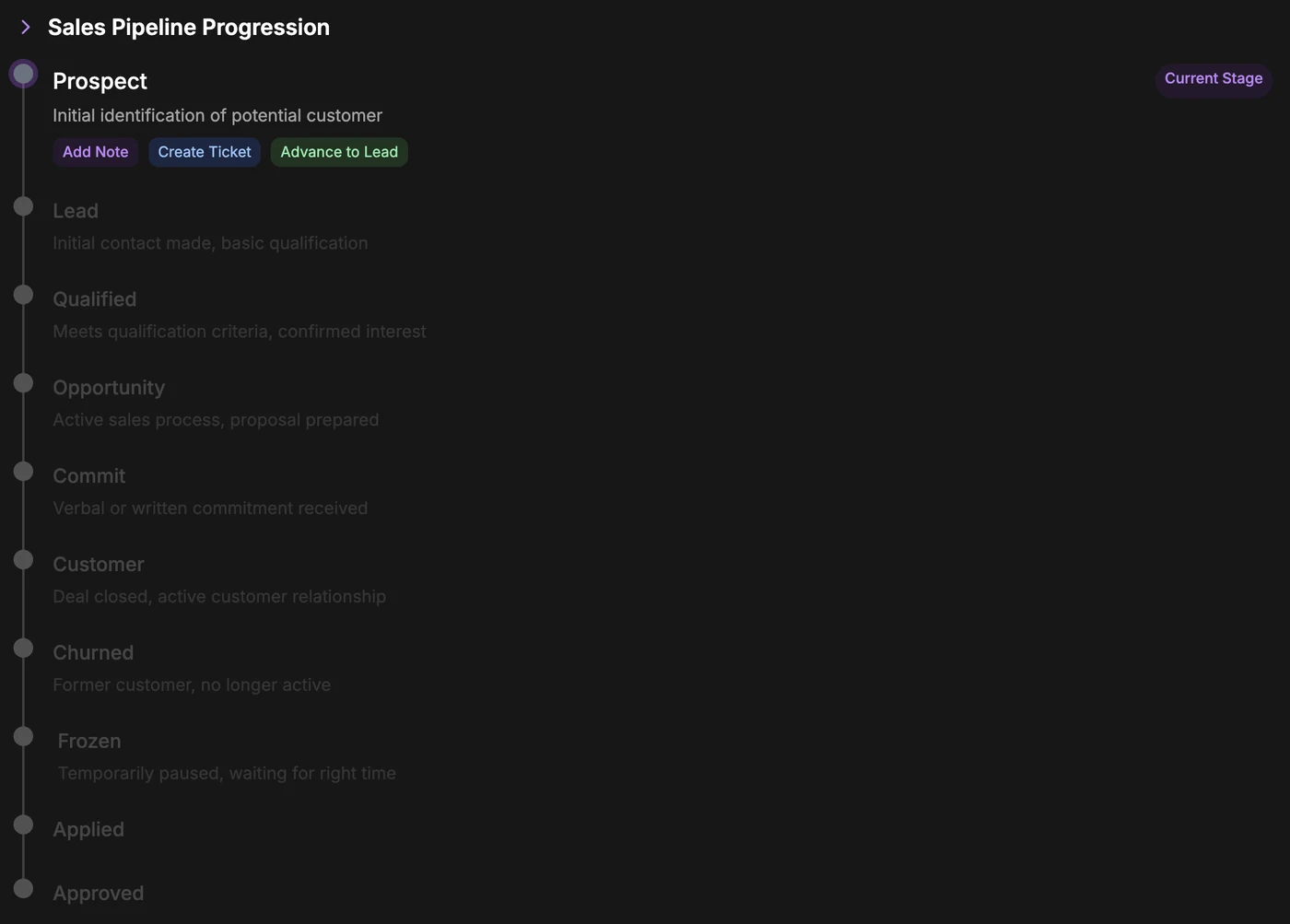
In Weaver a deal is a customer record moving through your stages. Open a customer and the whole path is on one screen: the stage it's in now and every stage after it. From the current stage you can add a note, open a ticket or move it one step forward.
Custom pipeline stages, in the order you sell
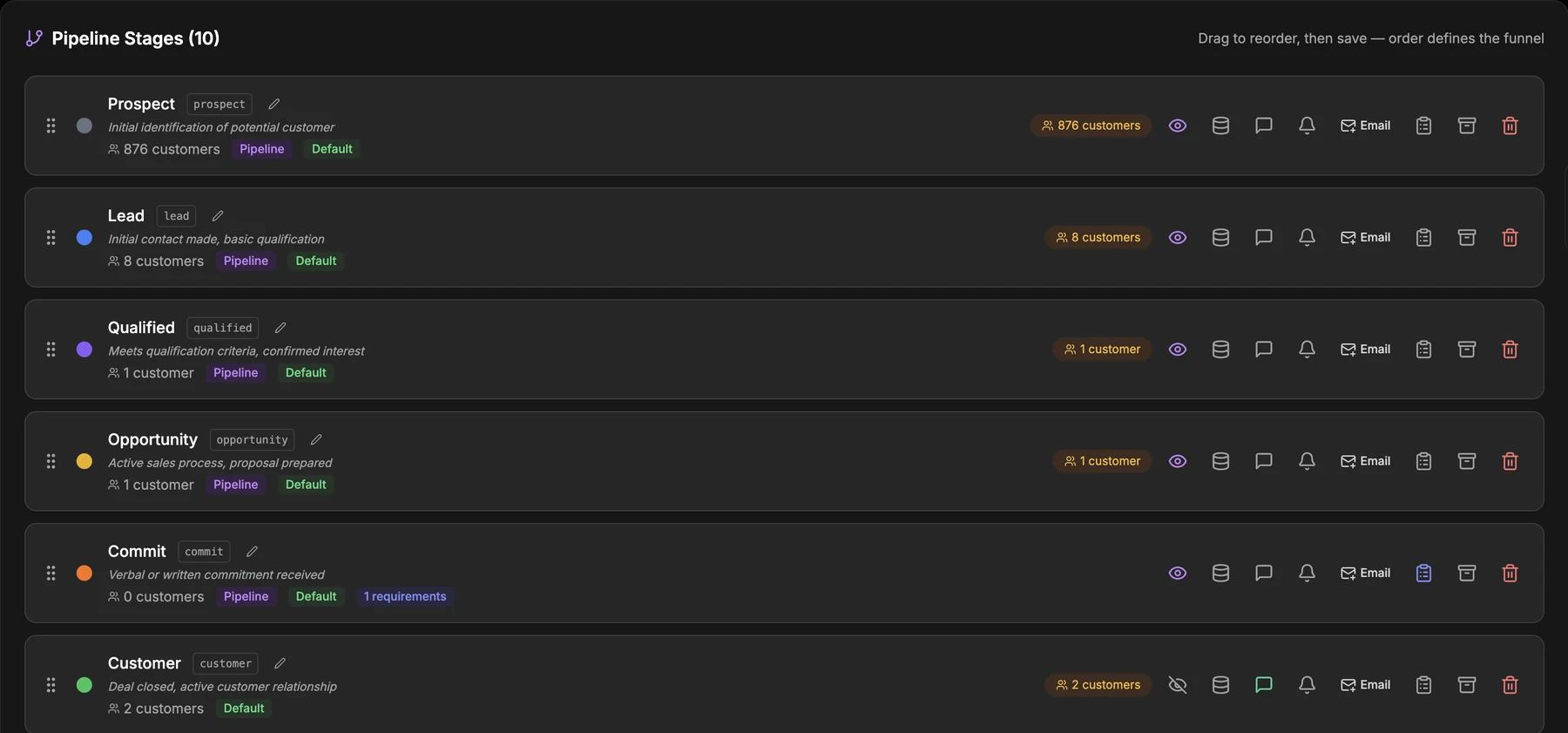
An admin adds stages and gives each one a name, a description and a color. Stages are drag and drop: grab the handle on the left of a stage, drag it to a new position and save, and that order becomes your funnel. The workspace below runs the usual Prospect to Customer path plus Applied and Approved, and Frozen for paused accounts. Stages such as Frozen or Churned can be marked as off-funnel statuses, so they aren't counted as funnel steps.
Stage-change workflows: from first follow-up to delivery
In our experience, a CRM doesn't end at the sale. It ends when sales operations has done its part and delivery gets a clean handoff, because that's where the customer actually gets the value. So in Weaver a stage isn't just a label. Each one can carry its own workflow: a reminder while the deal sits there, a checklist, a prompt when it moves, an email when the customer arrives, and work handed to operations.
1. Customer enters the stage
2. While it sits there
3. Customer reaches a stop stage
Activity reminders for stalled deals
Deals stall when nobody is prompted to follow up. Give a stage a reminder: your message, daily or weekly, to the account owner, the admins or both. It repeats while the customer sits in the stage and stops on its own when they reach a stage you picked.
Contract signed
“Has the customer sent in their application? If yes, move them to Applied.”
Account ownerWeeklyStops atAppliedFrozenNot interestedApplied
“Check in with the customer while the application is being reviewed.”
Account ownerWeeklyStops atApprovedFrozenNot interestedApproved
“Collect the paperwork we need before we schedule the install.”
Owner + adminsWeeklyStops atInstall scheduledCustomerFrozen
Stage checklists: what done means at each stage
A stage can carry a checklist of documents, photos, data fields and forms. You choose who it's assigned to (the account owner, whoever moved the stage, a role or a named person) and the deadline in hours. The rep works from the list instead of from memory.
Contract signed: checklist
Assigned to the account owner · deadline in hours
- Signed contractDocument
- Business registration checkDocument
- Owner's ID, front and backPhoto
- License numberData
- Contract summaryForm
Reasons for stage changes and lost deals
Moving a customer into a stage can open a short prompt: a question, a reason to pick or a field to fill. For lost deals the rep picks from your list, so every no is worded the same way.
Opportunity Not interested
Why did they say no?
- Not enough space
- Local rules don't allow it
- Landlord said no
- Already with a competitor
- Head office won't approve
Automatic email to prospects and customers on stage change
A stage can email every contact on the customer when the customer enters it, whoever moved them.
Enters Contract signed
To: every contact · Welcome, with the next steps written outEnters Customer
To: every contact · Onboarding guide
Handoff to sales operations and delivery
When a deal is won, the work moves to other people. The same stage change can hand a checklist to operations and open the delivery project in Projects.
1. Sales
Rep moves the customer to the won stage
2. Sales operations
Checklist goes to an ops role or named people, with a deadline
3. Delivery
Project opens in Projects on the same customer record
Trigger operational workflows
Attach any workflow to a stage change, built from timers, branches, actions and signals.
Trigger
Customer enters a stage
Steps
Timer
wait, then continue
Branch
take a path on a condition
Action
do something
Signal
wait for an event
Actions
- In-app alert
- Team alert
Log calls, visits and follow-up tasks on the same record
Activities, tasks, contacts and tickets sit on the customer record:
- Activities. Calls, visits, emails, video meetings, messages and plain notes, each with an outcome such as connected, voicemail left or meeting scheduled.
- Follow-up tasks. A task with a due date and a type, such as follow-up, demo, proposal or renewal, assigned to a person on the team.
- Contacts. One customer, many contacts, all on the customer record.
- Tickets. Open a ticket from the pipeline view when something needs fixing, without leaving the customer.
What the CRM industry looks like, and why we built differently
Data from the CRM Graveyard Research Report. Gartner, Forrester, Capterra, and public review platforms.
CRM shares the data backbone with ERP — deals flow to invoices automatically
CRM included — no separate license, no consultants, no admin salary
Fewer than 40% of companies achieve 90%+ CRM user adoption[2]
One UI across all apps — learn once, use everywhere, no adoption cliff
HubSpot pricing cliff: Starter to Professional tier = sudden four-figure monthly costs[5]
HubSpotNo tier gating — every CRM feature included at every level
See the pipeline and reminders on your own stages
Leave your email and we'll walk you through stage reminders, checklists and stage emails, and how they connect to invoicing.